
Expression Builder
Expression Builder is a powerful tool designed to enhance your journey creation and management processes. The Expression Builder allows for real-time personalization by enabling you to create complex conditions that guide your customers through various paths in their journey based on their behaviors, data attributes, and interactions.
This guide will walk you through the key features of the Expression Builder, its use cases, and how it can be integrated into your workflows to improve the customer journey experience.
Key components of the expression builder
-
Event conditions: These conditions are based on customer behaviors, such as interactions with your campaigns or specific actions they take.

-
Customer data conditions: These conditions are derived from the data stored within Cheetah Digital by Zeta, allowing you to leverage customer profiles and other stored information.

When building more complex expressions, you can easily add conditions and separate them with AND/OR groupings. Use parentheses and extra condition boxes to keep everything organized. For more guidance, check out the Condition Hierarchy and Advanced Examples. To make it easier to read, each condition is highlighted in a light color.
Use cases
The Expression Builder is designed to help you create more personalized and effective customer journeys. Here’s how it can make a difference:
-
Use Decision steps to tailor customer paths: Ensure customers receive the most relevant experience by filtering those that enter the journey, and moving them along paths based on customer attributes and behavioural attributes.
-
Filter who joins your Journey using Start steps: Only allow customers who meet certain criteria, like a points balance, to join a journey, ensuring the right audience is targeted.
-
Include Update Journey steps to measure success accurately: Fine-tune your success metrics by setting specific conditions that define when a customer has completed a journey, giving you more meaningful data.
How to create, edit, and delete expressions
The Expression Builder is accessible through the edit panel of any step where conditions can be applied.
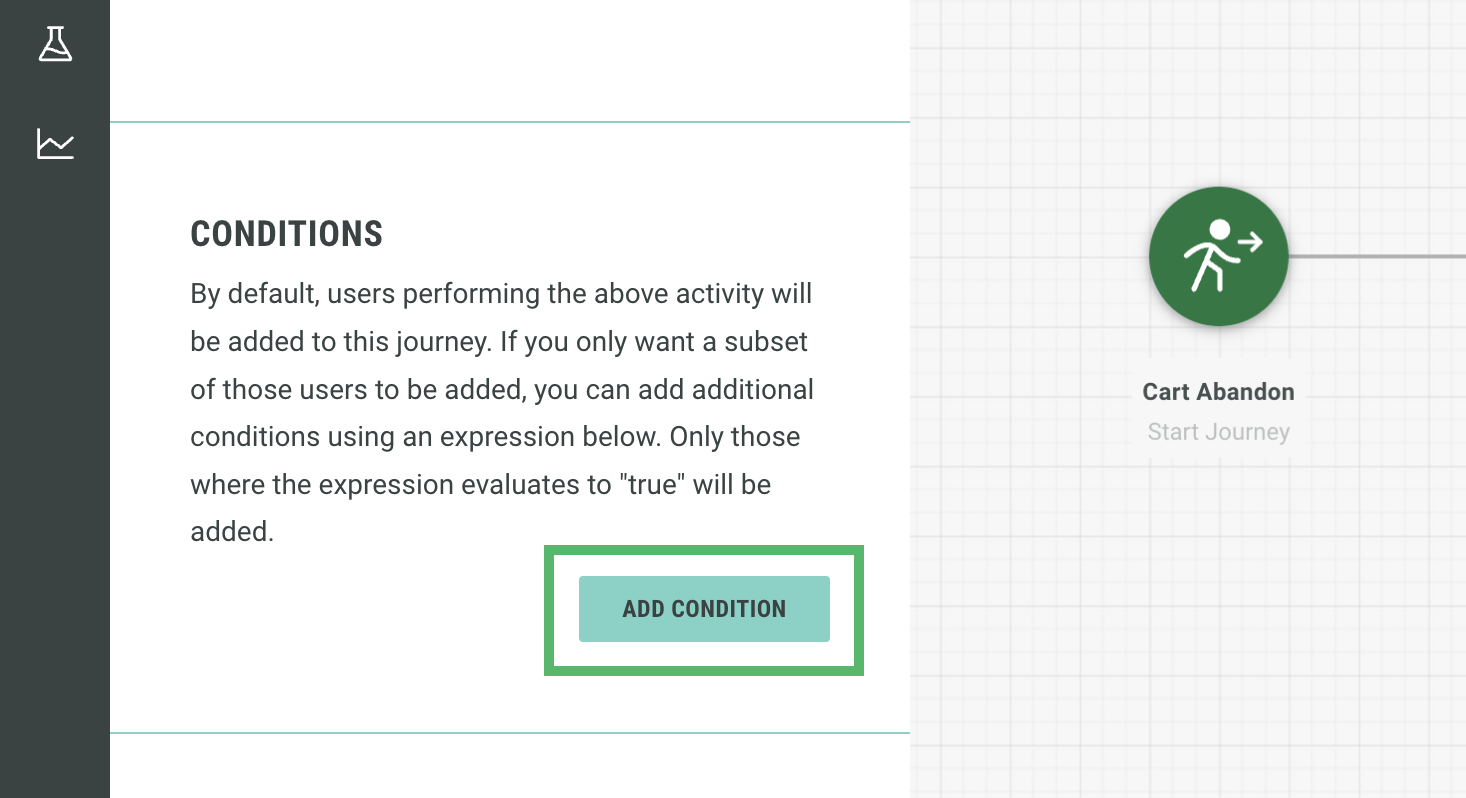
Click Add Condition to open up the Expression Builder panel.
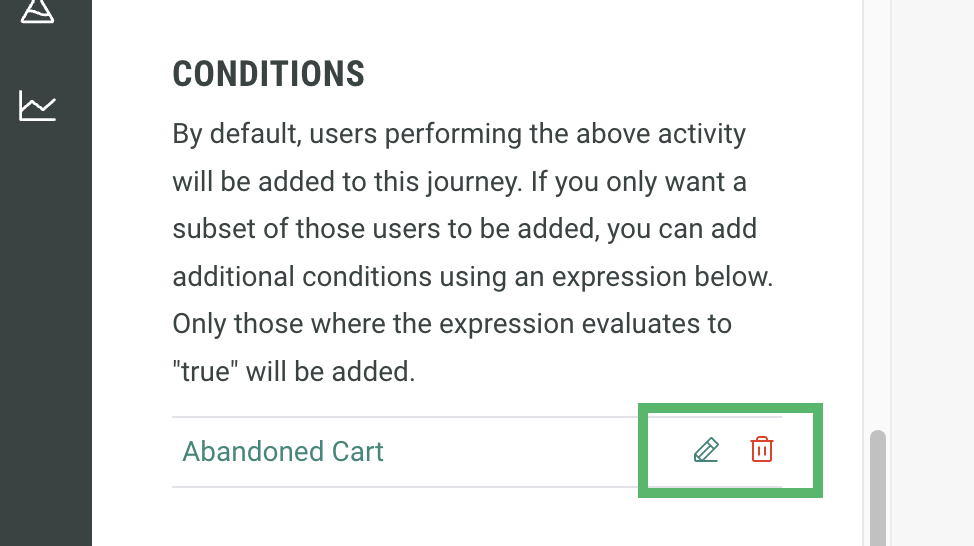
Once expressions have been added, you will see them listed here. You can choose to edit or delete them using the respective buttons.
Note: Some steps only allow a limited number of expressions. When this number has been reached, you will not see the Add Condition button until an expression has been deleted.
Creating an expression
The Expression builder supports two modes:
-
Auto-Formatting Enabled: also known as the Basic Editor. This mode will provide prompts and dropdowns to help build each expression. Best used for simple expressions.
-
Auto-Formatting Disabled: also known as the Advanced Editor. This mode exclusively uses Spring Language (SPeL) and is best used for more complex expressions.
Basic editor
When you open the Expression Builder for the first time, auto-formatting will be Enabled.
Firstly, we recommend giving your expression a name to make it easier to find later in the Edit pane.
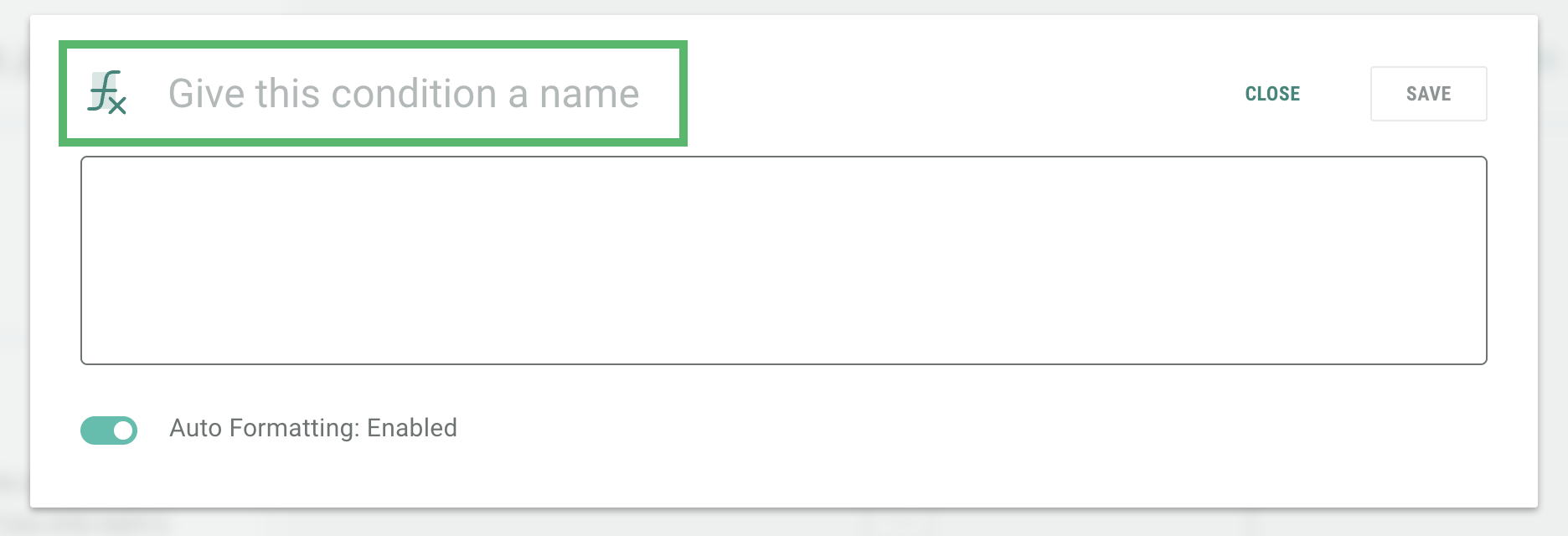
Note: If you don't give it a name, it will automatically use the beginning of the expression.
Start building each condition by using the dropdowns available. These dropdowns will prompt you to select from the available options, helping you to create a logical expression.
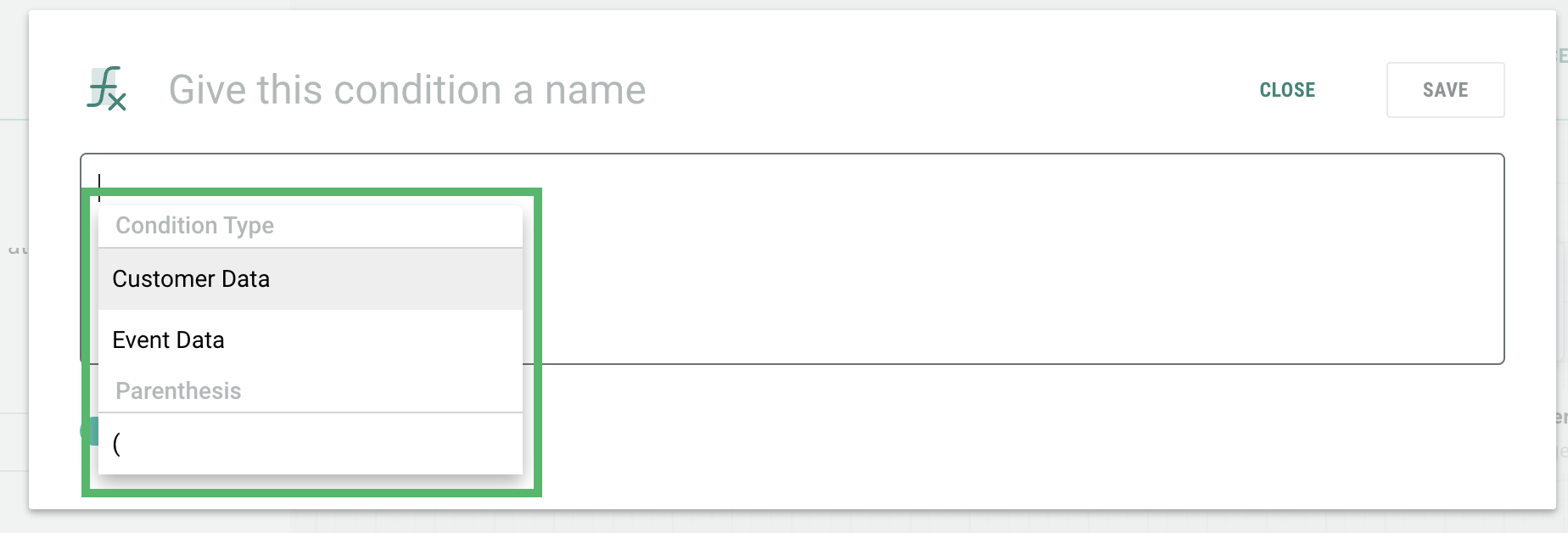
Start building each condition by using the dropdowns available. These dropdowns will prompt you to select from the available options, helping you to create a logical expression.
-
Selecting Event Data allows you to build conditions based on customer behaviors, such as interactions with your campaigns or specific actions they take
-
Selecting Customer Data allows to personalize a customer’s experience by creating conditions based on Customer Data, such as how much they spent or their preferences.
Next, you can complete your expression by selecting the following:
-
Comparison Expressions: Select from the list of supported comparison expressions provided to help you evaluate the specified condition.
-
Value: Specify the string value to compare in your condition, or select Null if you want the expression to be evaluated against a null value.
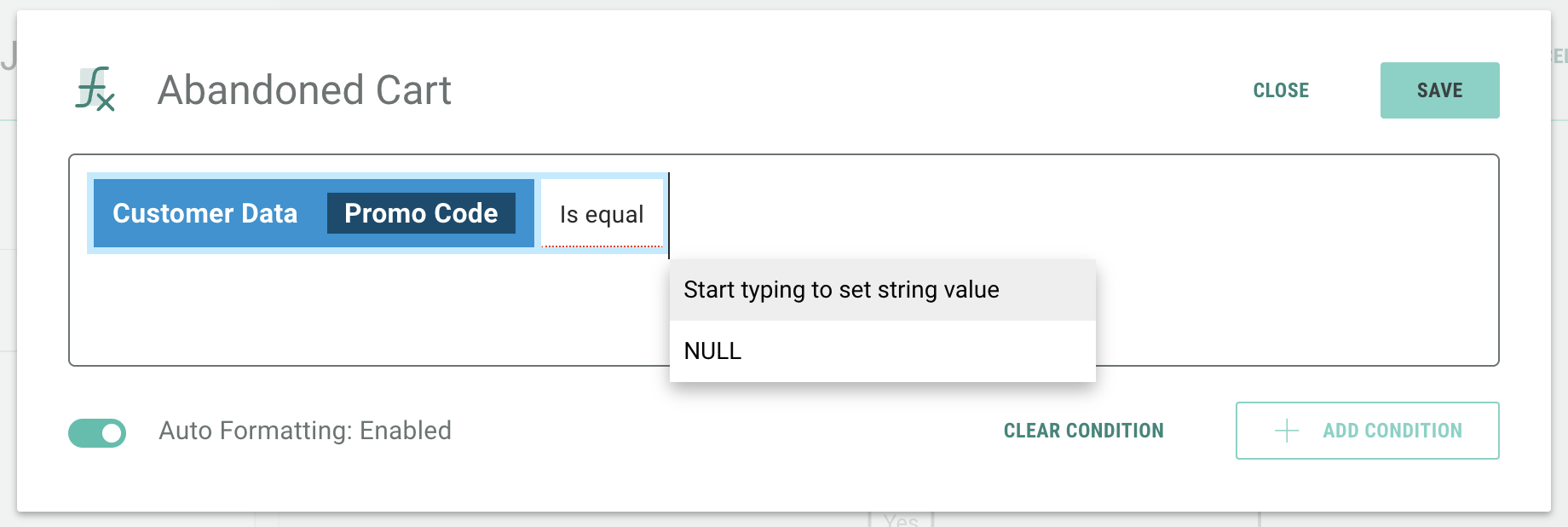
You can enhance your condition by using the AND (exclusive) or OR (inclusive) operators to construct more complex logical expressions.
Note: The data available for selection here is from the Data Source table selected in the Journey settings. Verify that you've selected the appropriate table from Engage+ in the Data Source section in the Journey Settings. Refer to Journey Settings for more help.
To delete part – or all – of the expression, you can use the backspace on your keyboard or click Clear Condition.
Advanced editor
The advanced editor within the Journeys Expression Builder allows you to build more complex conditions whilst maintaining clarity and precision.
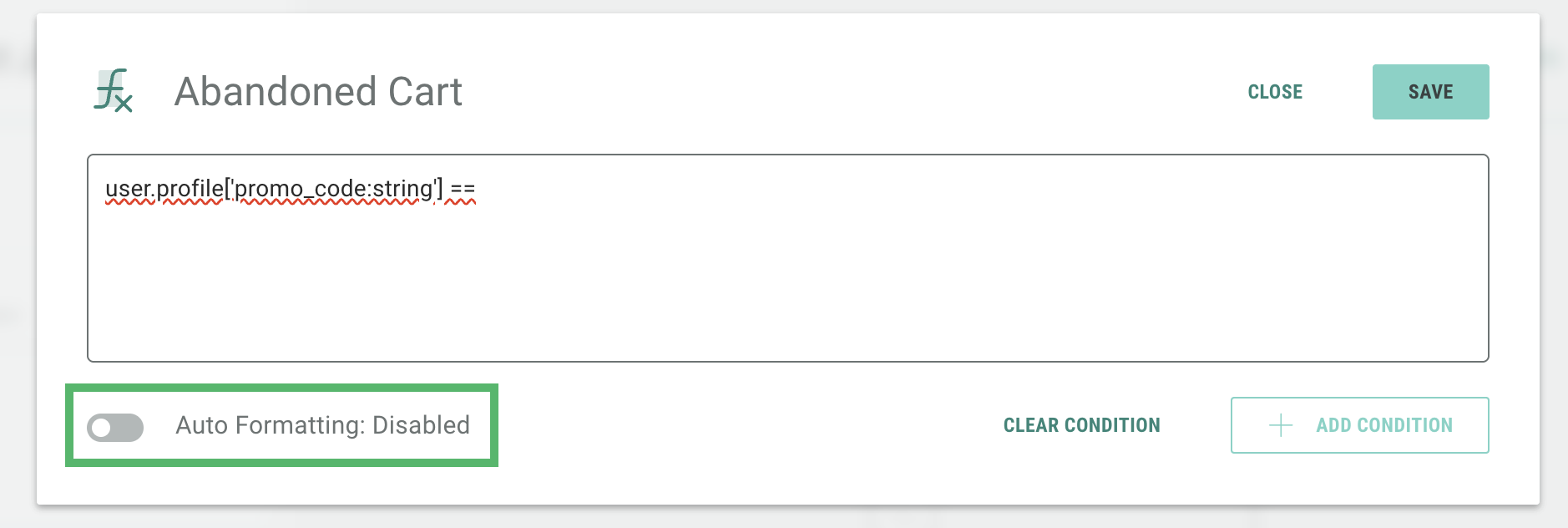
Expressions used in the advanced editor will use Spring Expression Language (SpEL). In this editor, there is no option to select from prompts. Instead you will be required to type out the entire expression.
To enable the advanced editor, toggle the Auto Formatting setting to Disabled.
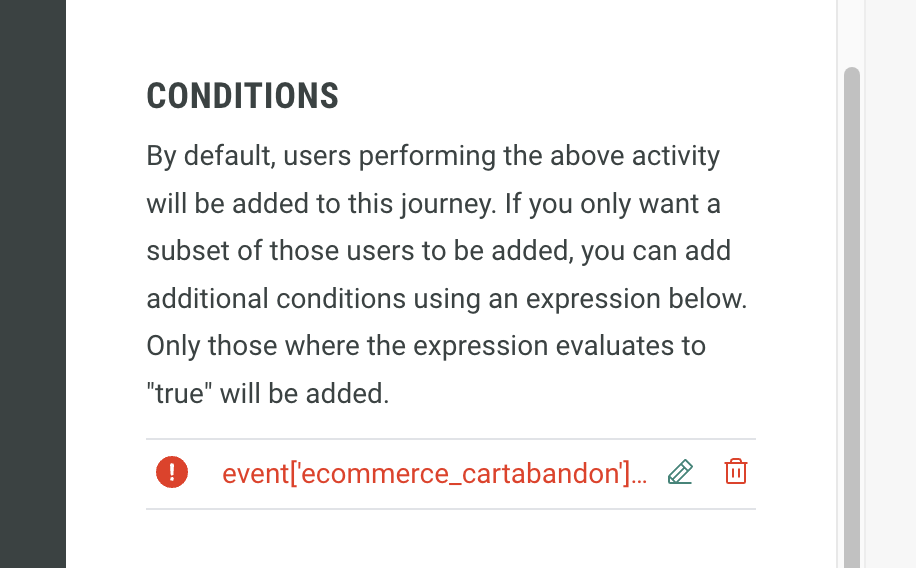
If the conditions are invalid, the name of the expression will turn red in the edit pane, and a red exclamation mark (!) will appear next to it. You will need to correct the invalid expressions before publishing your Journey.
For more details on the Advanced Expression Builder, refer here.
Condition hierarchy and advanced examples
The Condition Hierarchy feature simplifies the management of complex expressions, offering clarity and precision. When building detailed expressions, the risk of confusion and overly lengthy structures can become an issue. The condition hierarchy solves this by allowing nested conditions within parentheses to establish a clear order, enhancing customization. This approach empowers users to create intricate expressions with ease, ensuring both clarity and efficiency in their communication strategies.
